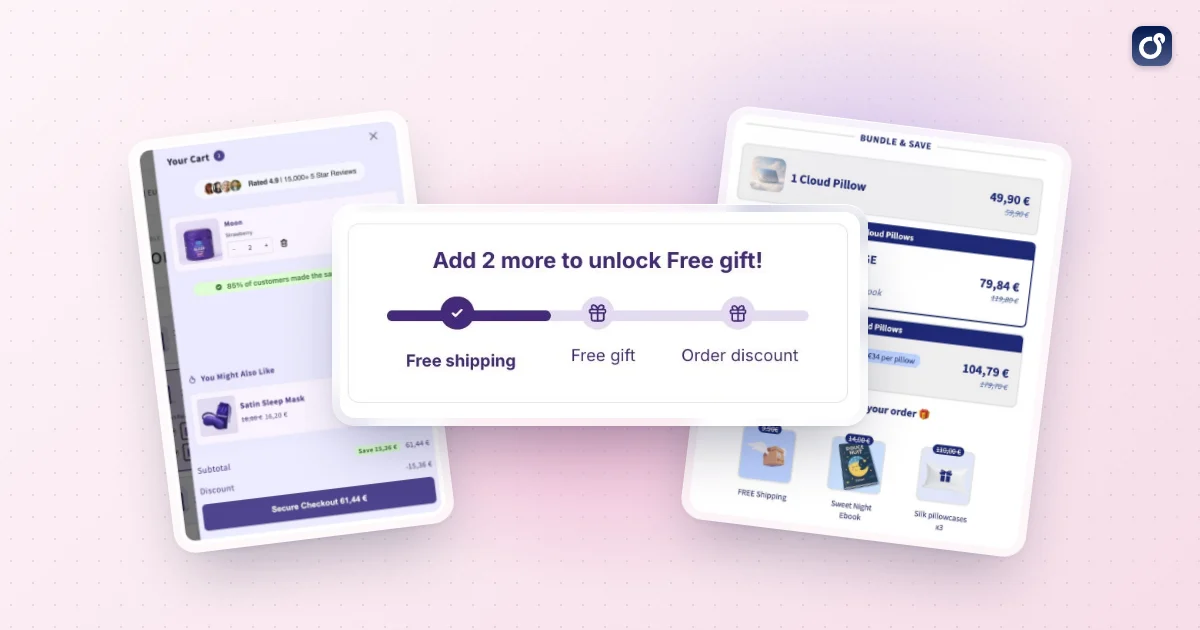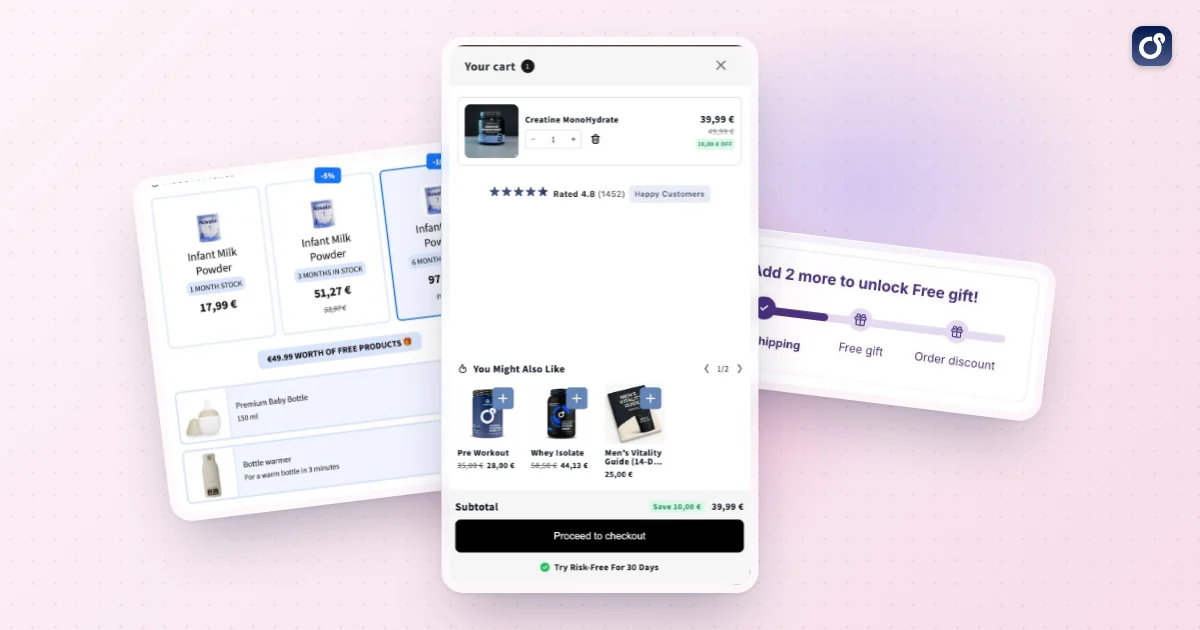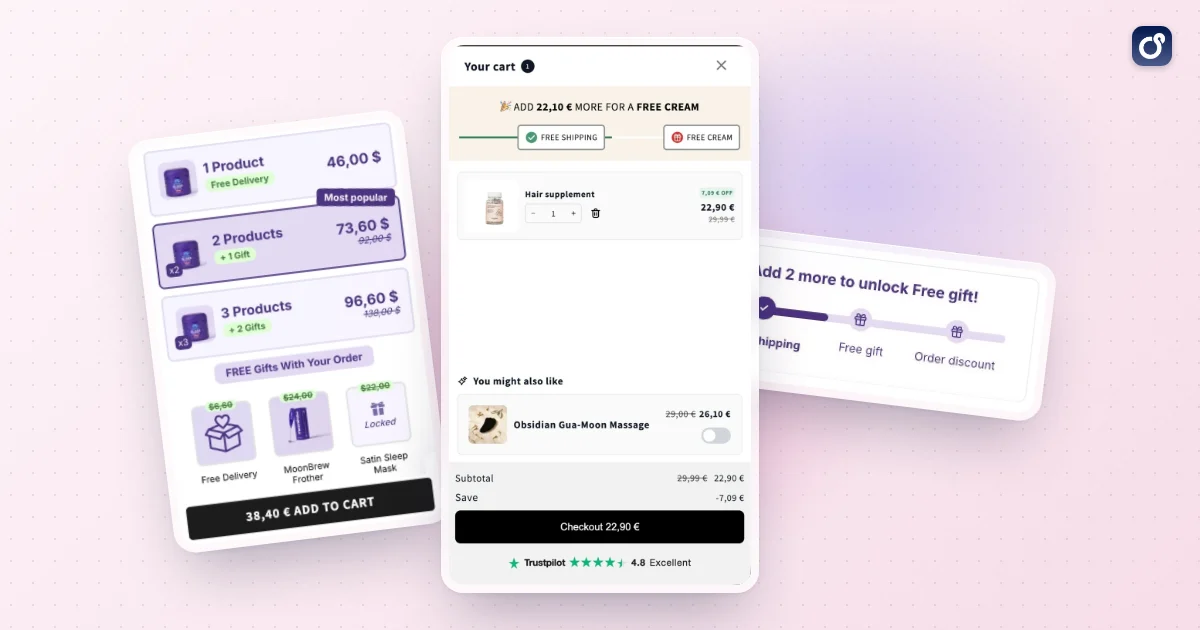
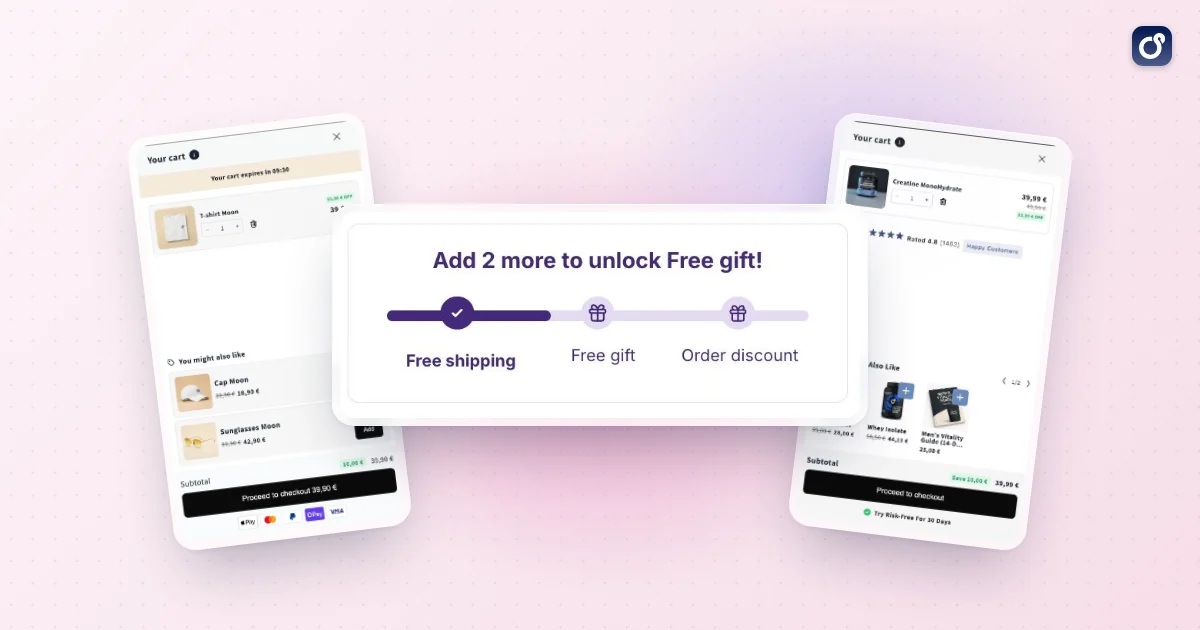
A Shopify free shipping progress bar turns a static policy ("free shipping over a set amount") into a visible goal. Instead of hunting for the rule in your footer, shoppers see a bar fill as they add products. It is a low-friction way to raise average order value (AOV) because it nudges behavior without a discount code or a popup.
This guide covers what the bar does, three ways to build it, where to show it, and how to tune it for conversion rate optimization (CRO) and margin. No uplift is promised here: results depend on your products, your traffic, and your goal.
What a Shopify Free Shipping Progress Bar Does, and When It Helps
The bar compares the current cart value with a free shipping goal and displays the gap. A typical message reads "You are $14 away from free shipping," and the bar fills as the cart grows. When the goal is reached, the message switches to a confirmation.
The behavior it relies on
Shipping cost is a common source of hesitation at checkout. A progress bar addresses that friction in two ways. It makes the benefit concrete, and it frames the next product as a small step rather than an extra expense.
Shoppers who are already close to the goal may add a low-priced item to avoid paying for shipping. That is the mechanism behind AOV gains from the bar: it does not create demand, it redirects spending that would otherwise be split across orders or abandoned.
When it helps most
- Stores with a clear shipping cost: if shoppers see a shipping fee at checkout, the bar gives them a way to avoid it.
- Catalogs with add-on items: accessories, refills, and small consumables make it easy to close a gap.
- Stores with a single, simple goal: one threshold is easier to communicate than a complicated rate table.
- Stores that already have steady traffic: the bar improves what you earn from visitors rather than bringing new ones.
When it can backfire
If your goal sits far above what most carts hold, the bar can feel unreachable and discourage shoppers instead of motivating them. If your margins are thin, free shipping on a barely qualifying order may cost more than the extra item earns.
Set the goal first. The article on how to choose a Shopify free shipping threshold walks through that calculation, so this guide focuses on displaying and optimizing the goal once you have it.
How to Add a Progress Bar to Your Shopify Store
You have three practical routes. The right one depends on your theme, your comfort with code, and how much you want to customize.
Step 0: Make the real shipping rate match
Before any visual work, confirm that your free shipping rate exists in your Shopify shipping settings, with a minimum order price. The bar is only a display. If the visible goal and the actual rate disagree, shoppers will reach the goal and still be charged, which damages trust fast.
Also check these details:
- Which currencies and markets use the rate, since the goal may differ by market.
- Whether the goal is calculated before or after discounts.
- Whether gift cards, subscriptions, or heavy items are excluded from free shipping.
Option 1: Use your theme's built-in options
Many current Shopify themes include a free shipping or announcement element in the theme editor. Look at the header announcement area and the cart section settings. This is the fastest route, but it is often limited to a static message rather than a bar that fills as the cart changes.
Option 2: Add a Liquid snippet
If you are comfortable editing your theme, a small Liquid snippet can render a bar on the cart page. Duplicate your theme before editing so you can roll back. The example below uses a $75 goal purely for illustration; replace it with your own.
{% assign goal = 7500 %}
{% assign remaining = goal | minus: cart.total_price %}
{% assign percent = cart.total_price | times: 100.0 | divided_by: goal | round %}
{% if percent > 100 %}{% assign percent = 100 %}{% endif %}

<div class="ship-bar">
  {% if remaining > 0 %}
    <p>You are {{ remaining | money }} away from free shipping.</p>
  {% else %}
    <p>You unlocked free shipping.</p>
  {% endif %}
  <progress value="{{ percent }}" max="100">{{ percent }}%</progress>
</div>
Shopify stores prices in the smallest currency unit, so the goal is written in cents. You will also need a few lines of CSS to style the bar.
Limitations to know: Liquid renders on page load. If shoppers change quantities in an AJAX cart or drawer, the bar will not update unless your theme re-renders that section or you add JavaScript. Multi-currency stores also need extra logic, because the goal should reflect the rate configured for each market.
Option 3: Use a cart drawer or app
A Shopify cart drawer that includes a progress bar solves the live-update problem, because the drawer re-renders whenever the cart changes. Apps also let you configure the goal, colors, and messages without code, and some add product suggestions next to the bar.
Moon Bundles covers this in two places. Its cart drawer shows free shipping progress next to cross-sells and inline discount codes, and its free gifts module runs a live progress bar with tiers you choose: free shipping at one threshold, a gift at the next, an order discount above. Check the plans for what each tier includes.
When you evaluate any option, check:
- Does the bar update instantly when quantities change?
- Can you show it on product pages, the cart page, and the drawer?
- Does it handle multiple currencies and markets?
- Can you edit the text for each state (empty, in progress, close, reached)?
- Does it work with your existing discounts and bundles?
Where to Place the Bar Across the Shopping Journey
Placement decides whether the bar influences a decision or becomes background noise. The goal is to show it at moments when the shopper can still add something.
Cart drawer and cart page
This is the highest-impact spot. The shopper has already committed to buying, and the cart shows the exact gap. Put the bar at the top of the drawer, above the line items, so it is visible without scrolling. On the cart page, place it near the subtotal and the checkout button.
Product pages
A short message near the add-to-cart button, such as "Free shipping on orders over $75," sets the expectation early. If the item the shopper is viewing would close the gap, you can reflect that in the message. This is also a good place to show a bundle or quantity option that gets the cart closer to the goal.
Header announcement bar
A site-wide strip makes the free shipping goal visible from the first page. It works best as a static reminder, or as a dynamic bar if your app supports it. Keep it short, because on mobile it competes with navigation.
Collection pages and search
Here the bar plays a quieter role. A simple line near the product grid reminds shoppers about the goal while they browse, which can encourage adding a second item. Avoid heavy visuals on listing pages because they slow the scan.
Checkout and after purchase
What you can customize at checkout depends on your checkout setup, so verify what is available before planning around it. Once the order is placed, the bar has done its job. A one-click offer shown after payment can still raise order value, but treat it as a separate tactic with its own message.
Placement summary
| Location | Main purpose | Best format | Watch out for |
|---|---|---|---|
| Cart drawer | Close the gap at the decision point | Live bar with product suggestions | Must update on every change |
| Cart page | Last nudge before checkout | Bar near subtotal | Do not push checkout below the fold |
| Product page | Set the goal early | Short text or compact bar | Avoid crowding the add-to-cart button |
| Header | Site-wide awareness | One-line message | Mobile space and readability |
| Collection pages | Encourage multi-item browsing | Small text reminder | Page speed and clutter |
Optimize the Bar for CRO, AOV, and Profitability
A bar that simply exists is a start. A bar that is tuned to your cart data is a revenue lever.
Set a goal shoppers can reach
Look at your AOV and the distribution of order sizes in your Shopify analytics. A goal slightly above your typical order is reachable with one extra item. A goal far above it will rarely be met and may reduce the bar's motivation. Review the goal whenever your pricing, product mix, or shipping costs change. If you need a refresher on the metric, see how to calculate Shopify average order value.
Write copy for each state
Use different messages for different stages, so the bar always says something useful:
- Empty cart: state the goal clearly ("Free shipping on orders over $75").
- In progress: show the exact remaining amount.
- Almost there: add urgency in plain language, such as "Just $6 to go."
- Reached: confirm the reward and move attention to checkout.
Avoid vague wording. Shoppers respond to a specific amount more than to a general promise.
Pair the bar with a way to close the gap
A bar that shows the gap without offering a path forward makes shoppers leave the cart and search. Place relevant suggestions directly under it, ideally priced near the remaining amount. This is where a cart upsell fits naturally: the bar creates the need, and the suggestion satisfies it in one tap.
Bundles and quantity breaks also help. If a shopper is $12 short, a "buy two, save more" option on a product they already have can close the gap while feeling like a better deal. Our guide on how to bundle products on Shopify covers the options. Make sure the suggested items are relevant, since irrelevant add-ons turn a helpful nudge into clutter.
Protect your margin
Higher AOV does not automatically mean higher profit. Track these together:
- Average shipping cost you absorb per qualifying order.
- Gross margin on the products most often added to reach the goal.
- The share of orders landing just above the goal, which shows the bar is working.
- Return rates on low-priced filler items.
If shoppers consistently add cheap items that cost you more in fulfillment than they earn, adjust the goal or steer suggestions toward higher-margin products.
Design for mobile first
Check the bar on a small screen, since many shoppers browse on phones. Keep the text short, make sure the fill contrasts clearly with the track, and confirm it does not push the checkout button out of view. Accessibility matters too: use readable font sizes and do not rely on color alone to show progress.
Test one change at a time
Treat the bar as an experiment. Compare versions of the goal, the copy, the placement, or the product suggestions, and run each test long enough to collect a meaningful number of orders. Judge results by AOV, conversion rate, and profit per visitor together, because improving one while hurting another is a false win.
The progress bar is one piece of a wider system. For the broader process of finding friction and prioritizing tests, see this guide on how to increase conversion rate on Shopify.
Common mistakes to avoid
- Showing a goal that does not match the actual shipping rate in Shopify.
- Using a bar that does not refresh when the cart changes.
- Hiding the bar below the fold on mobile.
- Setting a goal so high that most shoppers ignore it.
- Offering suggestions unrelated to what is in the cart.
- Measuring only AOV and ignoring margin and conversion rate.
A simple rollout plan
- Confirm the free shipping rate and goal in your Shopify shipping settings.
- Add the bar to the cart drawer or cart page first.
- Write distinct messages for each state.
- Add relevant product suggestions close to the bar.
- Extend the message to product pages and the header.
- Test the goal and copy, then review AOV, conversion, and margin together.
Done well, a Shopify free shipping progress bar is a small element with a clear job: make the next product feel like the obvious next step. Start in the cart, keep the goal honest and reachable, and let your own order data guide each adjustment.
Frequently asked questions
Can Shopify display a free shipping progress bar without an app?
Yes, a merchant can add one with custom theme code, but a shipping rate on its own does not create a storefront progress bar. A coded version needs to read the cart value, calculate the remaining amount, and refresh as cart contents change. The exact implementation depends on the theme and cart type, so test it on the live theme before publishing. An app can provide a configurable alternative, but check that it supports your theme and cart experience.
Will a Shopify free shipping progress bar update in a cart drawer?
It can, if the app or custom code is designed to refresh when items are added, removed, or quantities change. Some cart drawers update without a full page reload, so a bar that only calculates on page load may show stale progress. Test common cart actions on desktop and mobile, including adding an item from a product page and changing quantities inside the drawer.
Should the progress bar calculate the threshold before or after discounts?
Set the bar's calculation to match the amount Shopify uses to determine free shipping eligibility. If the bar counts a pre-discount subtotal but Shopify checks the discounted amount, it may tell shoppers they qualify when they do not. Review how your shipping rates, discount rules, and progress bar settings treat discounts, then test a cart with a discount applied so the displayed message matches checkout.
What if some products are excluded from free shipping?
Make sure the progress bar reflects the same product and shipping restrictions as your shipping setup. If excluded items contribute toward the displayed threshold, shoppers may see a qualification message that does not apply to their order. Check whether your app or custom code can account for exclusions, and test carts containing eligible items, excluded items, and a mix of both.
Can a free shipping progress bar work across different currencies or markets?
It can, but the threshold and displayed amount need to make sense for each market. Confirm that the bar uses the shopper's active currency and the correct free shipping rules for their destination, rather than showing a threshold configured for another market. Test the storefront and checkout for each market you serve, especially where shipping eligibility or thresholds differ.