A Shopify cart drawer sits between "add to cart" and checkout, which makes it one of the most valuable pieces of screen space in your store. Shoppers see it on almost every purchase journey, and small changes to it can affect both conversion and order value.
This guide covers what a cart drawer is, how to enable it in a theme such as Dawn, what to include, how to use it for conversion rate optimization (CRO) and average order value (AOV), and how to test whether it works. No conversion lift is promised here: results depend on your products, your traffic, and your offers.
- What Is a Shopify Cart Drawer, and How Does It Differ from the Cart Page?
- How to Set Up a Cart Drawer in Shopify Dawn
- What Should a User-Friendly Shopify Cart Drawer Include?
- How to Use a Cart Drawer to Support CRO and AOV
- How to Measure and Improve Cart Drawer Performance
- How to Choose a Cart Drawer Setup for Bundles and Upsells
- Frequently asked questions
What Is a Shopify Cart Drawer, and How Does It Differ from the Cart Page?
A cart drawer is a panel that slides in from the side of the screen, usually the right, when a customer adds an item. It shows the current cart contents, the subtotal, and a button to check out. The shopper stays on the product or collection page they were browsing.
The cart page is different. It is a dedicated URL (/cart) rendered by your theme's cart template, and it typically lists line items in a table or stacked layout. Shoppers have to navigate to it, which adds a page load and a break in their browsing flow.
Cart drawer, cart page, and cart notification compared
Most modern themes let you choose how the cart behaves after an add-to-cart action. Here is how the common options compare.
| Option | What the shopper sees | Best for | Main trade-off |
|---|---|---|---|
| Cart page | A full page at /cart | Large carts, detailed order review | Interrupts browsing, adds a page load |
| Cart drawer | A slide-out panel over the current page | Fast mobile flow, in-cart offers | Limited space, needs careful layout |
| Cart notification | A small confirmation with a link to the cart | Minimal, single-item stores | Little room for upsells or progress bars |
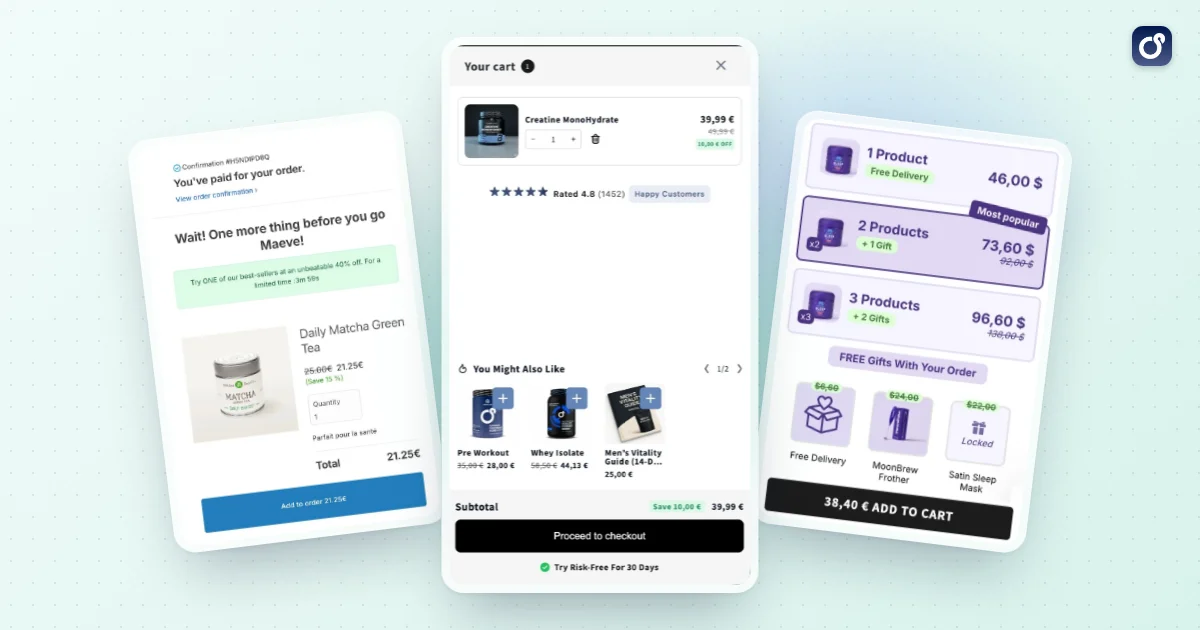
The drawer wins when you want shoppers to keep browsing and still see what they have added. It also gives you a natural spot for a free shipping bar, a bundle suggestion, or a quantity discount message. The cart page still matters as a fallback, so keep it working and consistent with the drawer.
How to Set Up a Cart Drawer in Shopify Dawn
Dawn is Shopify's reference theme, and Dawn and many other themes offer a cart drawer option. The exact labels vary by theme and version, so treat the steps below as a general path and check your own theme editor.
Enable the drawer from the theme editor
- In your Shopify admin, open your online store themes.
- Duplicate your live theme so you have a safe backup before changing anything.
- On the copy, click Customize to open the theme editor.
- Look in the theme settings for the cart options.
- Choose the drawer as the cart type if your theme offers it (the other choices are typically the cart page and a pop-up notification).
- Save, then test an add-to-cart action on the preview.
If the drawer does not open after adding a product, the cause is usually one of three things: the cart type is still set to page, the add-to-cart button was customized and no longer triggers the drawer, or a third-party script is intercepting the click.
Customize the drawer in code when needed
Dawn handles the drawer with a Liquid snippet and a JavaScript file, commonly named cart-drawer. If you want to change what happens when a button is clicked, that is the place to look. Always edit a duplicated theme, and keep changes small and documented.
Under the hood, themes read and update the cart through Shopify's Cart API, then re-render the drawer with the new contents. That is why a well-built drawer updates instantly when quantities change or items are removed.
Check the basics before you go live
- Add, remove, and change quantity on desktop and on a real phone.
- Confirm the drawer opens after add to cart on product pages, collection pages, and quick-add buttons.
- Make sure the checkout button works and the cart count in the header stays accurate.
- Test with a discount code, a gift item, and an empty cart state.
What Should a User-Friendly Shopify Cart Drawer Include?
A good drawer is quick to read, easy to edit, and obvious about the next step. Everything beyond that should earn its place.
The essentials
- Clear line items: product image, name, variant, price, and quantity controls.
- Easy removal and editing: a visible remove option and quantity steppers sized for thumbs.
- Accurate subtotal: updated instantly, with a note about shipping and taxes if they are calculated later.
- A checkout button that always stays visible, even when the cart is long. Pin it to the bottom of the drawer.
- A way to keep shopping, such as a close icon or "continue shopping" link.
Helpful extras
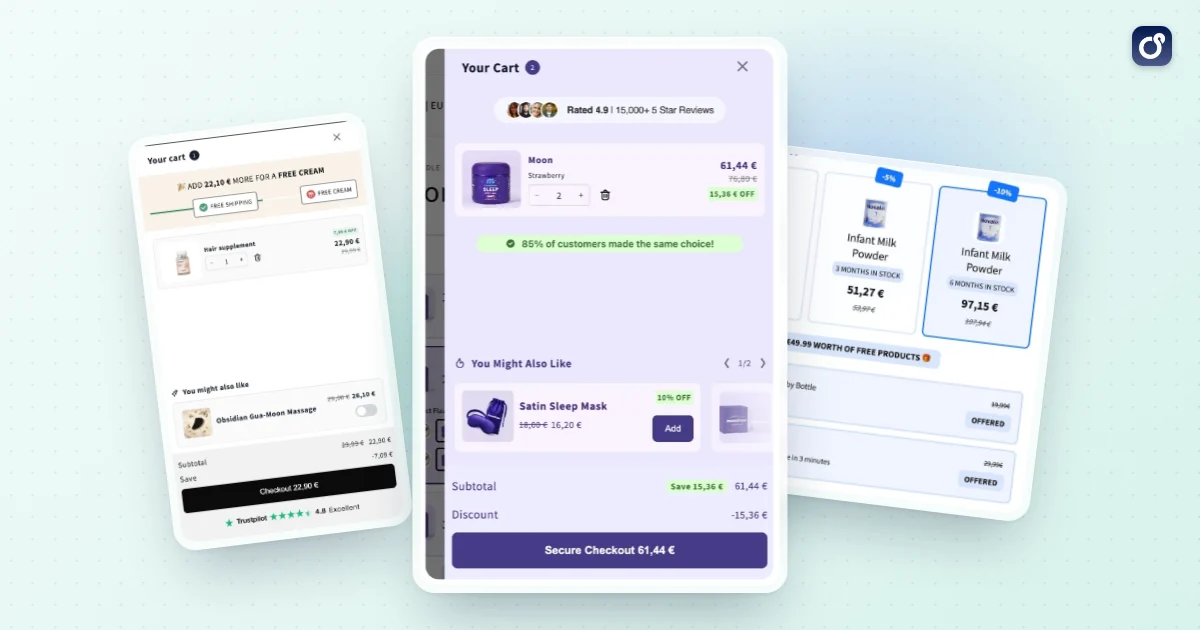
- Free shipping progress bar: shows how much more the shopper needs to qualify. It must match your real shipping rule.
- Trust cues: return policy snippet, secure payment icons, or delivery estimates, kept short.
- Order notes or gift options if your customers use them.
- A helpful empty state with links to best sellers or collections, instead of a blank panel.
Mobile and accessibility details
Many shoppers browse on phones, so design the drawer for a narrow screen first. Use large tap targets, avoid tiny text, and make sure the drawer does not push the checkout button below the fold.
Accessibility matters too. The drawer should be reachable by keyboard, close with the Escape key, return focus to the cart icon when closed, and expose clear labels to screen readers. These details also reduce friction for every other shopper.
How to Use a Cart Drawer to Support CRO and AOV
Once the drawer is stable, it becomes a place to reduce hesitation and raise order value. The rule is simple: help the shopper complete a better order, not a more cluttered one. For broader context on testing and prioritizing changes, see our Shopify conversion rate optimization guide.
Offer relevant add-ons, not random ones
An in-cart upsell works best when it relates to what the shopper already chose: a compatible accessory, a refill, a larger size, or a complementary item. Show one to three offers, below the line items and above the checkout button.
Adding a product should take one tap and keep the drawer open. Avoid pop-ups on top of the drawer, which interrupt the purchase the shopper was already about to make. More ideas on raising order value are in our Shopify average order value strategies.
Use progress bars and quantity incentives
A free shipping bar gives shoppers a concrete goal and often nudges them to add one more item. Reward milestones, such as a free gift at a certain subtotal, work in the same way. Our guide to the Shopify free shipping threshold explains how to set the number.
Quantity breaks and volume discounts also fit naturally in the drawer. A short message such as "add one more to unlock a lower price per unit" is easy to understand, and it connects the cart to the offers on your product pages.
Keep offers honest
- Never pre-check a paid add-on. The shopper should choose it deliberately.
- Show thresholds in the shopper's currency and use the same rule your checkout applies.
- Do not hide the checkout button behind offers or make it harder to find.
- Avoid fake urgency. Countdowns that are not real damage trust.
Cart offers versus post-purchase offers
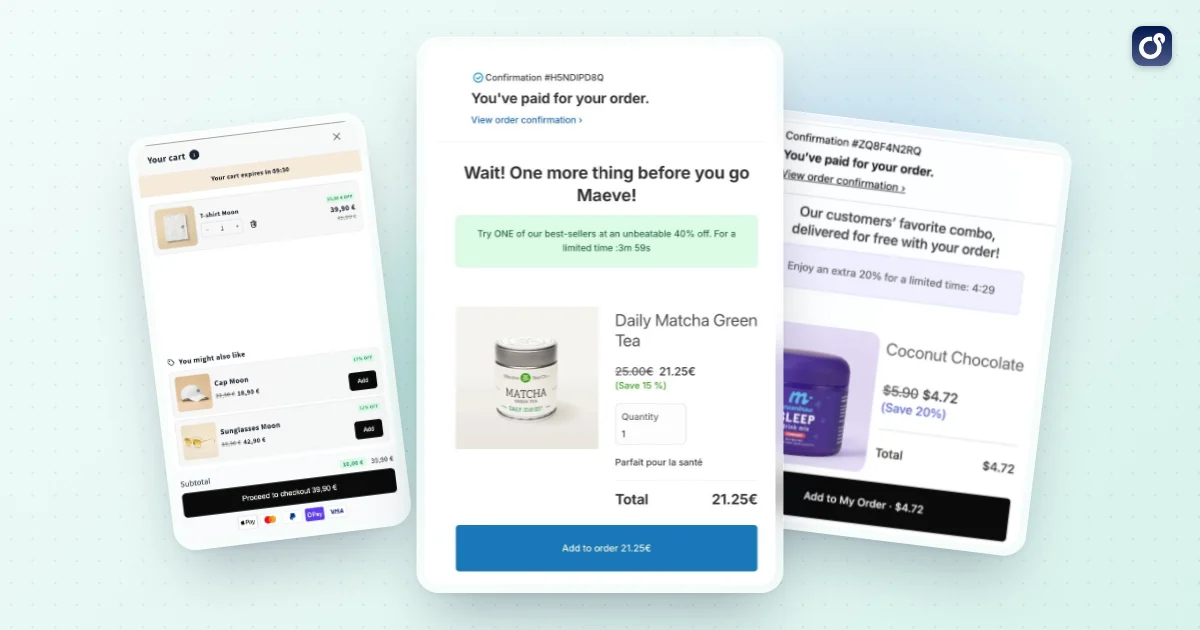
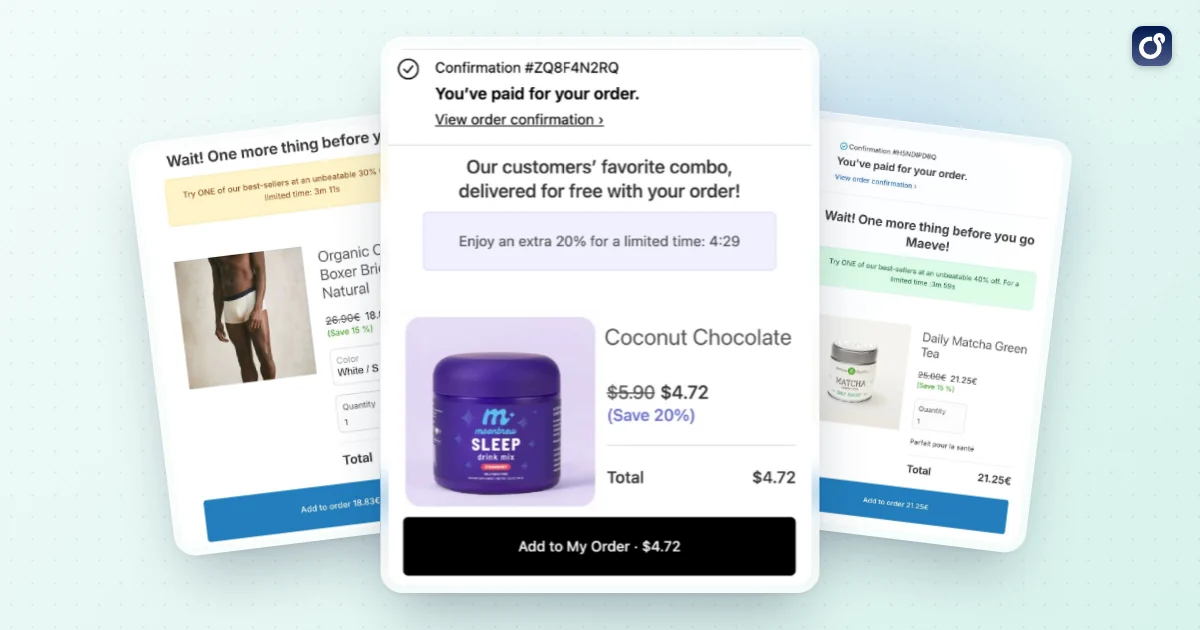
The cart drawer is a pre-checkout moment: the shopper has not paid yet, so every offer competes with the checkout button. A post-purchase offer appears after the order is placed, when the payment step is already done. Our Shopify post-purchase upsell guide explains how the two stages differ and how they can work together.
How to Measure and Improve Cart Drawer Performance
It is easy to add features to a drawer and assume they help. Measurement keeps you honest, because a higher average order value with fewer orders is a loss, not a win.
Metrics to track
- Conversion rate: the share of sessions that end in an order.
- Average order value (AOV): revenue divided by number of orders.
- Revenue per visitor: combines conversion and AOV in one number.
- Attach rate: the share of orders that include an item added from a drawer offer.
- Cart-to-checkout rate: how many shoppers who open the drawer click through to checkout.
Test one change at a time
Compare a variant against a control group that sees the original drawer. Change one thing per test, such as the number of offers, the position of the progress bar, or the wording of the call to action. Run the test long enough to cover normal weekly traffic patterns.
If you change several elements at once, you will not know which one moved the numbers. Keep a simple log of what you tested, the dates, and the result.
Watch for performance and bugs
A heavy drawer slows the page, and a slow add-to-cart response feels broken. Check page speed after each change, and test again after theme updates or when you install a new app. Look for conflicts, such as two apps both trying to open their own cart panel.
How to Choose a Cart Drawer Setup for Bundles and Upsells
The right setup depends on your catalog, your team, and how much you want to customize. There are three common paths.
- Theme drawer only: simplest and fastest, good for stores that mainly need a clean cart and a checkout button.
- Theme drawer plus custom code: flexible, but it needs developer time and ongoing maintenance when the theme updates.
- Dedicated app: adds offers, progress bars, and bundles without custom code, but you should check theme compatibility and how it affects speed.
Questions to ask before you choose
- Does it work with my theme and my existing discounts, without offers clashing?
- Can I control which offers appear, and based on which cart contents?
- Can I see what each offer earns, and test changes?
- Does it keep the checkout button visible and the drawer fast on mobile?
- Can product page bundles and quantity breaks carry through to the cart consistently?
That last point is easy to overlook. If a shopper picks a bundle on the product page and the cart shows something different, trust drops quickly. Your product page offers and your drawer should feel like one system.
Where Moon Bundles fits
Moon Bundles is a Shopify app that brings bundles, a cart drawer with free shipping progress and cross-sells, progressive gifts, and one-click post-purchase offers into one dashboard, with A/B testing across modules. See the cart drawer feature for details, and the plans and pricing (a free plan is available, and paid plans include a 7 day free trial).
It is also AI-powered in concrete ways: an AI assistant and an MCP connector come with every plan, so you can connect Claude, ChatGPT or Gemini to your store, and AI agents follow your offer results and prepare the next tests. If you use Claude, see Claude Cowork. If you would rather compare options first, our best Shopify upsell app guide covers the main choices by offer type.
Whatever route you choose, start small: enable the drawer, make checkout effortless, add one relevant offer, and measure. Then expand only what the data supports.
Frequently asked questions
Why might a Shopify cart drawer stop opening or updating?
A cart drawer may fail when theme scripts, custom code, or multiple cart apps interfere with one another. First, test the storefront in a duplicate theme and check whether the issue occurs after changing quantities, removing items, or selecting product options. Review browser console errors and app settings, then disable suspected customizations one at a time in the test theme. If the problem persists, share the steps to reproduce it with the theme or app developer.
How can you make a Shopify cart drawer accessible?
Make sure shoppers can open, navigate, and close the drawer using a keyboard, not only a mouse or touchscreen. When it opens, move focus into the drawer, keep keyboard focus inside while it is open, and return focus to the original trigger when it closes. Provide a clearly labeled close button, visible focus indicators, readable contrast, and screen reader announcements when cart contents change. Test with keyboard navigation and assistive technology.
Is a Shopify cart drawer a good choice for mobile shoppers?
It can work well on mobile when the drawer is easy to read, scroll, and dismiss, but it is not automatically better than a cart page. Check that buttons have comfortable tap areas, item details and quantity controls remain clear, and the checkout action is easy to find without obscuring important content. Test on different screen sizes and with longer carts. If the drawer feels cramped or difficult to navigate, offer a clear route to a full cart page.
What should you test after adding a cart drawer app?
Test the full path from adding a product to completing checkout, including product variants, quantity changes, item removal, discount codes, and any cart attributes your store uses. Check that the displayed subtotal and items match the cart and that the checkout button leads to the expected Shopify checkout. Also test with other installed apps and on mobile. Repeat these checks in a duplicate theme before publishing changes to the live storefront.
Can a Shopify cart drawer conflict with other store apps?
Yes. Apps that change cart behavior, discounts, subscriptions, product options, or checkout-related messaging can interact with a cart drawer and affect what shoppers see or what gets added to the cart. Check each app's compatibility information and test the combined setup in a duplicate theme. Pay particular attention to cart totals, line item details, and checkout handoff. If a conflict appears, contact the relevant app developers with clear steps to reproduce it.
Does a Shopify cart drawer affect search engine optimization?
A cart drawer is mainly a shopping interface, so it should not replace indexable product page content or essential links on the storefront. Keep product descriptions, structured information, and useful navigation on their appropriate pages rather than relying on content that appears only after a shopper opens the drawer. Check that the drawer does not block important page content or create broken navigation.